In the File module, files that are in a .sgy format are available for scanning.
Use one of the following methods to select the files to add to SEG-Y Scan:
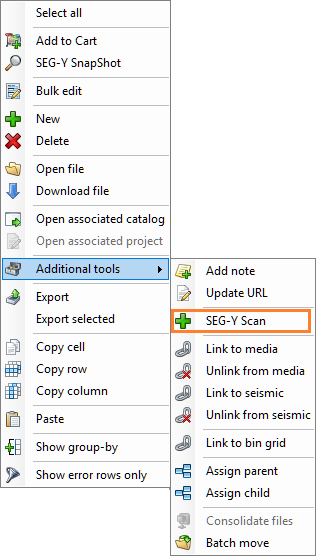
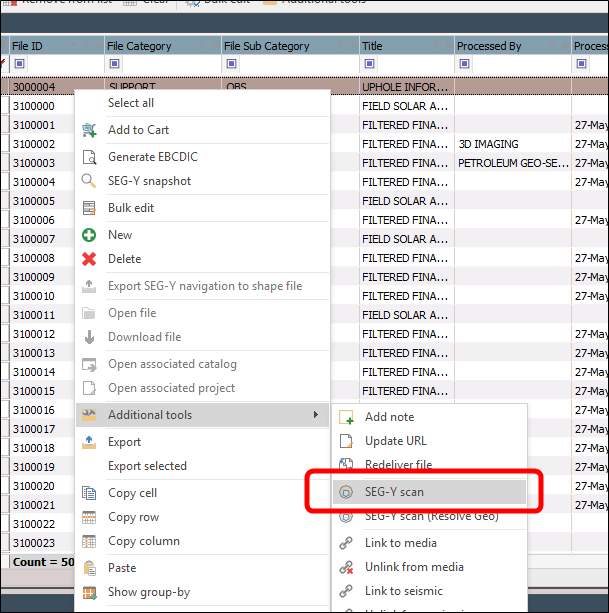
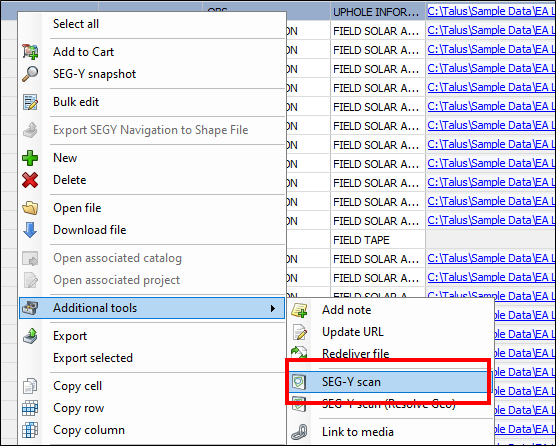
Right-click on a selected row, point to Additional tools and click SEG-Y Scan in the context menu.
and
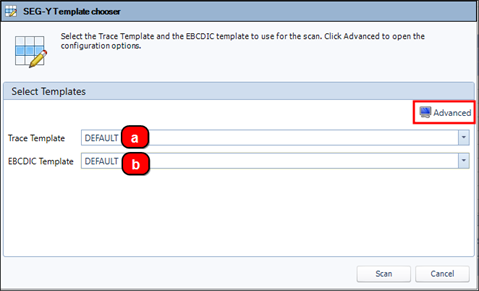
The SEG-Y Template chooser window opens.
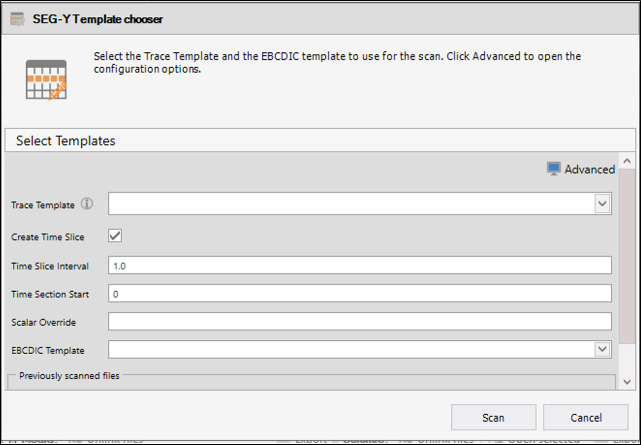
When the SEG-Y Template chooser window opens it is in the Basic scanning mode. In this mode, all the files are scanned with the same Trace and EBCDIC templates.
To configure a scan in Basic mode:
From the template chooser window you can set the following for all files being scanned: create time slice, time slice interval, time section start, scalar override.
Click Advanced to adjust settings for each selected file.
The Advanced widow is divided into 3 panels:
Files:
This panel displays all the records that have been selected for scanning. Each row represents one record. There are 3 icons available with each record:
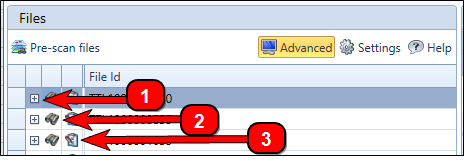
Information: When you select this icon a dialogue will open showing the information for the record.
Inspection: Activates the Inspection Process and activates the Quality Control panel. Inspection parses the EBCDIC and Binary Headers and a Trace Header if one is assigned.
Custom Template: Overrides the existing Trace Template on the file. This will force the scan to run the file in custom mode using the override.
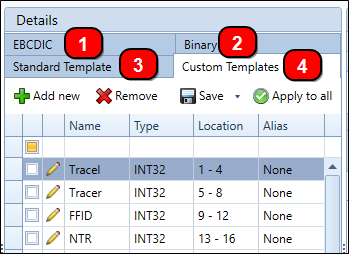
The Panel is divided into 4 tabs:

EBCDIC: Displays the EBCDIC Header in ASCII format.
Binary: Displays the values from the binary header
Standard Template: Provides the standard byte locations. Select the standards to use for reading the data from the SEG-Y File.
To save the selected standards to use as a template right-click and select Add to template.
To set an alias to use when generating the spacing and sawtooth validations, right-click and select Set alias and select the alias to use.
Custom Templates: Displays the trace template details based on your selected template.
It includes the option to Add new or Remove templates from the custom list.
To save template options to a new template, click the Save drop-down and select Save as new template.
Edit an existing template by selecting the Pencil icon.
Select the templates on the list then click Save.
Quality Control:
The panel is divided into 4 sections:
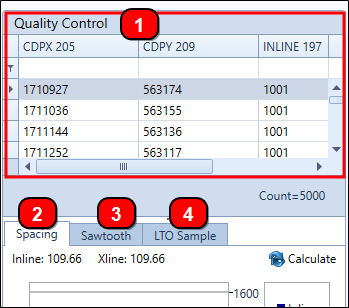
Grid: The grid displays the trace data from the SEG-Y based on the selected standard and custom templates. The values in this grid are used to generate the spacing and sawtooth charts.
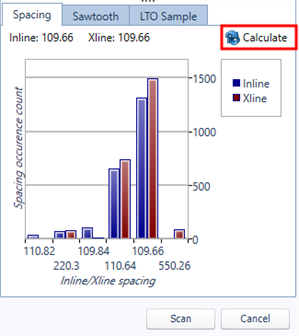
Spacing: Click Calculate to view the spacing on a graph
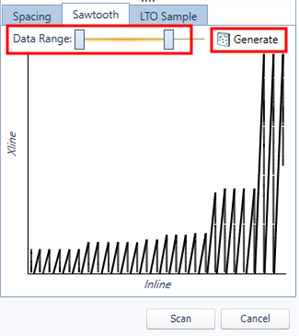
Sawtooth: Click Generate to see a graphical representation. Use the Data Range slider to change the number of traces being used.
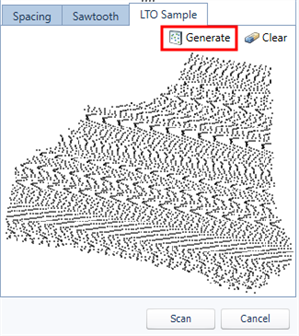
LTO Sample: click Generate to create the sample. To clear the panel, click Clear.
In the File module, files that are in a .sgy format are available for scanning.
To prepare SEG-Y Scan for scanning files:
Use one of the following methods to select the files to add to SEG-Y Scan:
Right-click on a selected row
The SEG-Y Template chooser window opens.
When the SEG-Y Template chooser window opens it is in the Basic scanning mode. In this mode, all the files are scanned with the same Trace and EBCDIC templates.
To configure a scan in Basic mode:
Select the Trace Template from the drop-down list.
Select the EBCDIC Template from the drop-down.
In some environments, this field may be optional.
Click Advanced adjust settings for each selected file.
The Advanced widow is divided into 3 panels:
Files:
This panel displays all the records that have been selected for scanning. Each row represents one record. There are 3 icons available with each record:
Information: When you select this icon a dialogue will open showing the information for the record.
Inspection: Activates the Inspection Process and activates the Quality Control panel. Inspection parses the EBCDIC and Binary Headers and a Trace Header if one is assigned.
Custom Template: Overrides the existing Trace Template on the file. This will force the scan to run the file in custom mode using the override.
The Panel is broken into 4 tabs:

EBCDIC: Displays the EBCDIC Header in ASCII format.
Binary: Displays the values from the binary header
Standard Template: Provides the standard byte locations. Select the standards to use for reading the data from the SEG-Y File.
To save the selected standards to use as a template right-click and select Add to template.
To set an alias to use when generating the spacing and sawtooth validations, right-click and select Set alias and select the alias to use.
Custom Templates: Displays the trace template details based on your selected template.
It includes the option to Add new or Remove templates from the custom list.
To save template options to a new template, click the Save drop-down and select Save as new template.
Edit an existing template by selecting the Pencil icon.
Select the templates on the list then click Save.
Quality Control:
The panel is divided into 4 sections:
Grid: The grid displays the trace data from the SEG-Y based on the selected standard and custom templates. The values in this grid are used to generate the spacing and sawtooth charts.
Spacing: Click Calculate to view the spacing on a graph
Sawtooth: Click Generate to see a graphical representation. Use the Data Range slider to change the number of traces being used.
LTO Sample: click Generate to create the sample. To clear the panel, click Clear.
In the File module, files that are in a .sgy format are available for scanning.
To prepare SEG-Y Scan for scanning files:
Use one of the following methods to select the files to add to SEG-Y Scan:
Right-click on a selected row
The SEG-Y Template chooser window opens.
When the SEG-Y Template chooser window opens it is in the Basic scanning mode. In this mode, all the files are scanned with the same Trace and EBCDIC templates.
To configure a scan in Basic mode:
Select the Trace Template from the drop-down list.
Select the EBCDIC Template from the drop-down.
Click Advanced adjust settings for each selected file.
The Advanced widow is divided into 3 panels:
Files:
This panel displays all the records that have been selected for scanning. Each row represents one record. There are 3 icons available with each record:
Information: When you select this icon a dialogue will open showing the information for the record.
Inspection: Activates the Inspection Process and activates the Quality Control panel. Inspection parses the EBCDIC and Binary Headers and a Trace Header if one is assigned.
Custom Template: Overrides the existing Trace Template on the file. This will force the scan to run the file in custom mode using the override.
The Panel is broken into 4 tabs:

EBCDIC: Displays the EBCDIC Header in ASCII format.
Binary: Displays the values from the binary header
Standard Template: Provides the standard byte locations. Select the standards to use for reading the data from the SEG-Y File.
To save the selected standards to use as a template right-click and select Add to template.
To set an alias to use when generating the spacing and sawtooth validations, right-click and select Set alias and select the alias to use.
Custom Templates: Displays the trace template details based on your selected template.
It includes the option to Add new or Remove templates from the custom list.
To save template options to a new template, click the Save drop-down and select Save as new template.
Edit an existing template by selecting the Pencil icon.
Select the templates on the list then click Save.
Quality Control:
The panel is divided into 4 sections:
Grid: The grid displays the trace data from the SEG-Y based on the selected standard and custom templates. The values in this grid are used to generate the spacing and sawtooth charts.
Spacing: Click Calculate to view the spacing on a graph
Sawtooth: Click Generate to see a graphical representation. Use the Data Range slider to change the number of traces being used.
LTO Sample: click Generate to create the sample. To clear the panel, click Clear.
To start the scan process, refer to Starting SEG-Y Scan.